The part shows up tiny in the slicer: inches, millimetres and how to fix it
STL files carry no unit. The slicer assumes millimetres, and a file in inches becomes a speck on the bed.
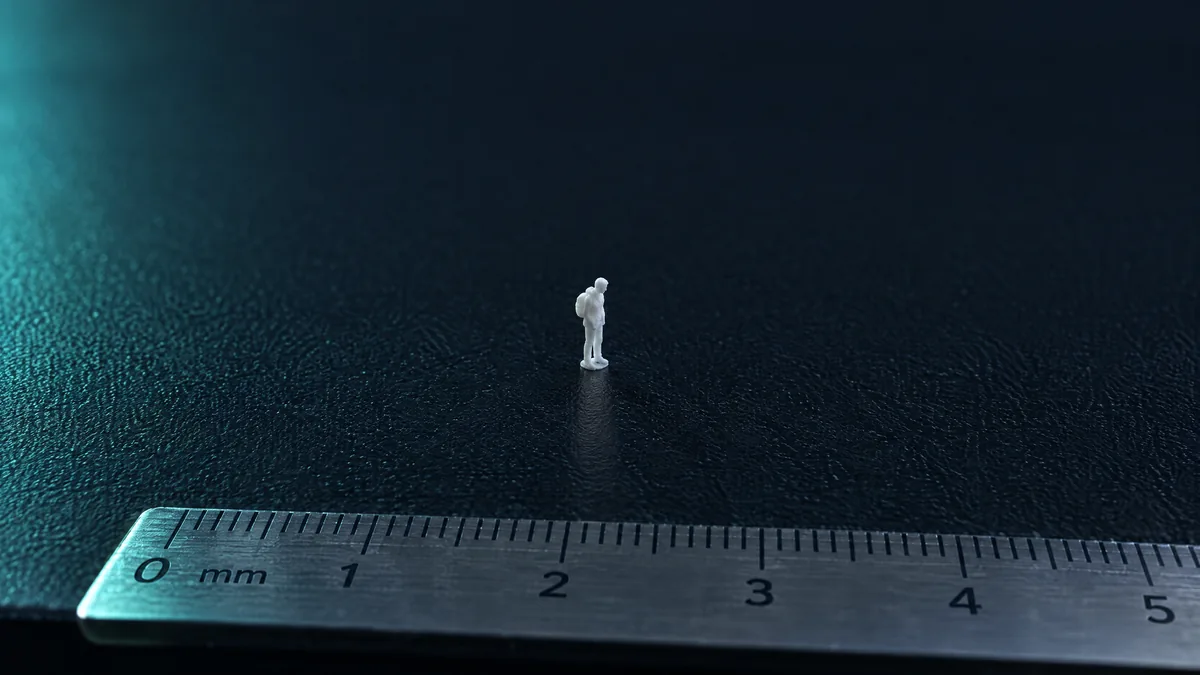
You import the STL and the part shows up as a speck on the bed. Or the opposite: huge, sticking out past the plate. The model is not wrong. STL files carry no unit, and the slicer assumes millimetres.
Why it happens
Inside an STL there are only numbers: the coordinates of each vertex. Nothing says whether "10" means 10 millimetres, 10 inches or 10 metres. Every slicer reads it as millimetres. So:
- A file modelled in inches shows up 25.4 times smaller.
- A file in centimetres shows up 10 times smaller.
- A file in metres (common in architecture and game models) shows up a thousand times smaller.
A part that should be 5 cm and arrives at 2 mm is almost always inches.
How to fix it in one click
- Open Resize STL and drop the file. Everything runs in the browser; the file is never uploaded.
- Under "File came out in the wrong unit?", click inch → mm ×25.4, cm → mm ×10 or m → mm ×1000.
- Check the new dimensions next to it and download. The file name carries the dimensions, so versions do not get mixed up.
When you know the final size
If the part must be exactly 120 mm wide, type 120 on the X axis: the other two follow. To stretch one side only, untick "keep proportions". You can also scale by percentage.
Mind holes and fits
Scaling changes everything together, holes and clearances included. A 5 mm hole at 120% becomes 6 mm; an M3 screw fit stops being M3. For a part that mates with something of fixed size, remodel it. For decoration, miniatures and mock-ups, scaling is the way.
Thingiverse or Printables model too small? Many were published in inches by authors in the United States. The unit button fixes it before slicing.